Test accounts
Test accounts let you sign in with static verification codes during development and testing, without needing access to a real email inbox or SMS.
warning
Test accounts are for development only. Disable them before deploying to production.
Enable test accounts
- Navigate to your project in the MetaMask Developer Dashboard.
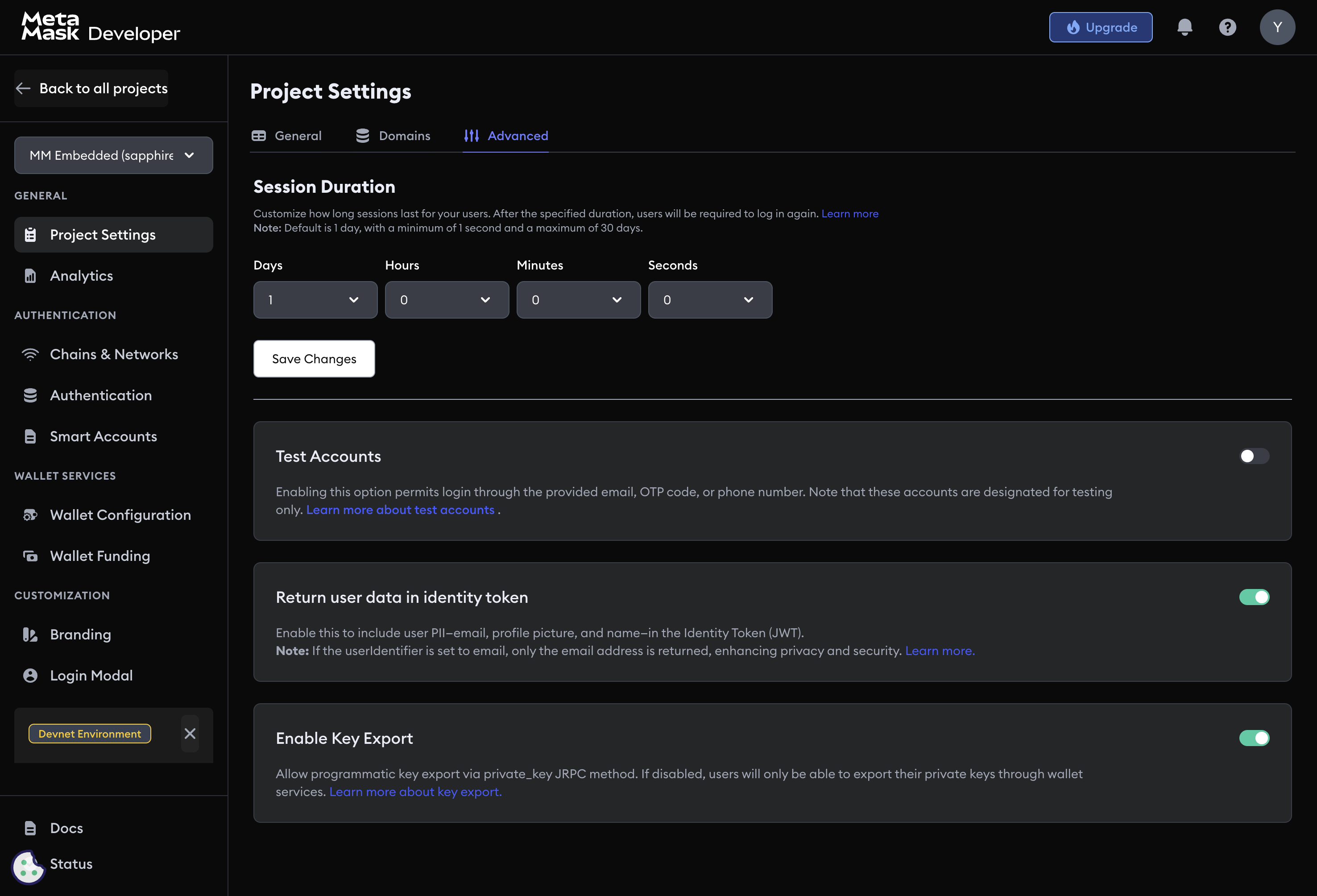
- Click Project Settings, then Advanced.
- Locate the Test Accounts section.
- Toggle Enable Test Accounts.
Test account types
Email authentication
Each test account has a unique email in the format test_account_XXXX@example.com (where XXXX is a randomly generated number shown in the dashboard). Use it to sign in via email passwordless OTP.
Phone number authentication
Each test account has a unique phone number in the format +1 (555) XXX-XXXX (where XXX-XXXX is shown in the dashboard). Use it to sign in via SMS OTP.
Static OTP code
The dashboard displays a single static OTP code that works for all test account logins. The code does not change unless you refresh it.
Using test accounts
Email and OTP flow
- Enter the test email shown in the dashboard.
- Click Send Code.
- Enter the static OTP code shown in the dashboard.
- Complete the authentication flow.
SMS and OTP flow
- Enter the test phone number shown in the dashboard.
- Click Send Code.
- Enter the static OTP code shown in the dashboard.
- Complete the authentication flow.
Troubleshooting
If test accounts are not working:
- Verify you are using the correct Sapphire environment (Devnet or Mainnet) where test accounts are enabled.
- Check that Enable Test Accounts is toggled on under Project Settings → Advanced.
- Confirm the email or phone number matches exactly what the dashboard displays. Refresh credentials if needed.
- Use the static OTP code from the dashboard, not a code from your inbox.