Project settings
Project settings let you manage the core configuration for each project, including credentials, authentication, token verification, and lifecycle options.
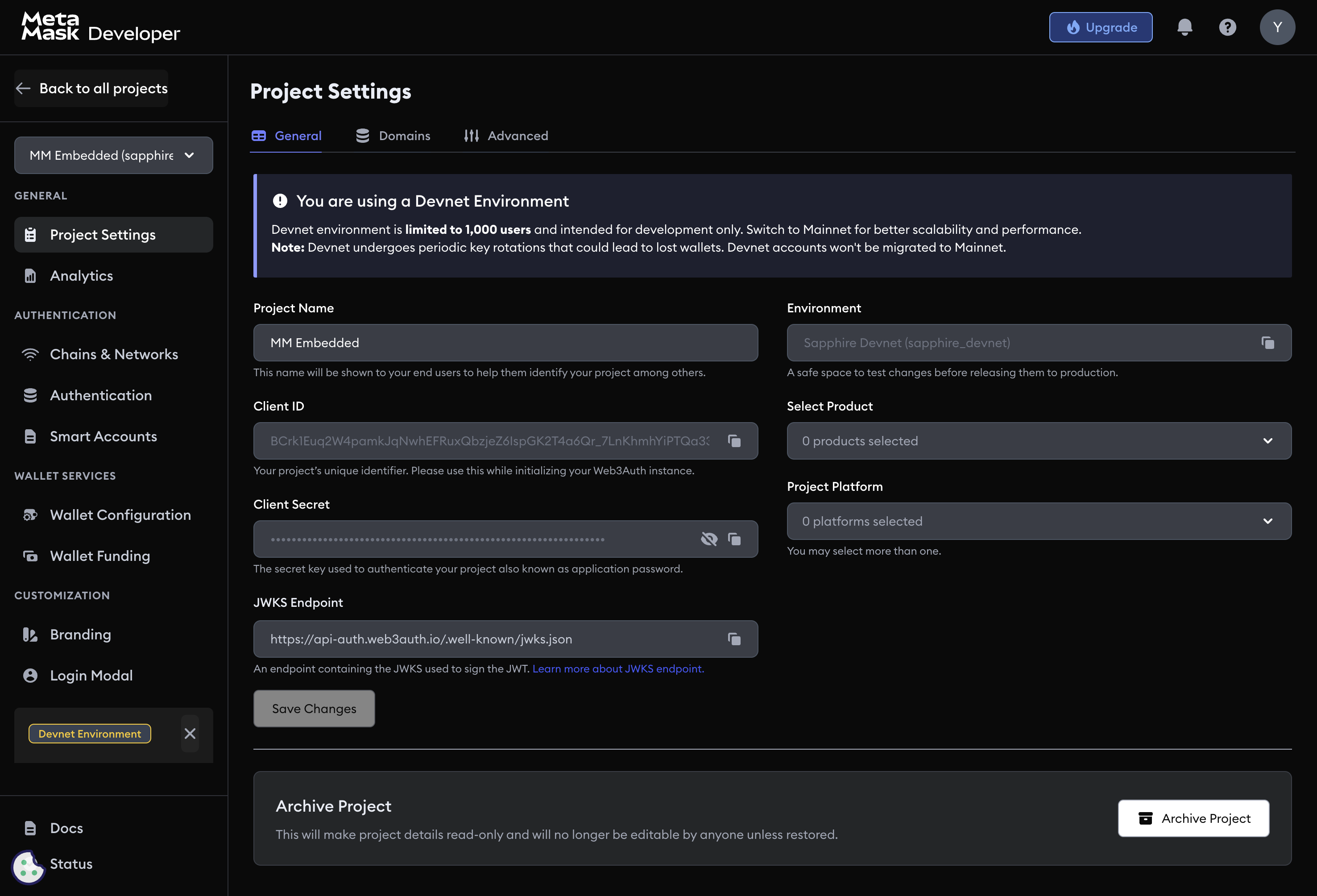
Project information
Project name
The project name appears in login modals, authentication flows, and system-generated emails sent to your users. You can change it at any time after project creation.
Environment
The environment is set at project creation and cannot be changed afterward. Two environments are available:
- Sapphire Devnet: development environment for testing and integration
- Sapphire Mainnet: production environment for live applications
Each environment has a separate user base and isolated data.
Project platform
Select the platform that best describes your application:
- Web: browser-based applications (React, Vue, JavaScript)
- Mobile: native mobile applications (Android, iOS, React Native, Flutter)
- Gaming: game development platforms (Unity, Unreal Engine)
Authentication credentials
Client ID
A unique identifier generated automatically for each project. Use it to initialize the Embedded Wallets SDK:
import { Web3Auth, WEB3AUTH_NETWORK } from '@web3auth/modal'

const web3auth = new Web3Auth({
  clientId: '<YOUR_CLIENT_ID>', // Safe to expose in client-side code
  web3AuthNetwork: WEB3AUTH_NETWORK.SAPPHIRE_MAINNET,
})
The Client ID is safe to expose in client-side code and cannot be changed after generation.
Client secret
A confidential key for server-side API requests. Never expose it in frontend code, mobile apps, or any publicly accessible environment. Store it in environment variables or a secrets manager. You can regenerate it from the dashboard if it is compromised.
The client secret must never appear in client-side code, mobile binaries, or any public repository.
Token verification
Embedded Wallets signs identity tokens (JWTs) using its own keys. Verify these tokens server-side before trusting any claims.
JWKS endpoint
The JWKS endpoint exposes the public keys used to sign tokens. Use it with a JWKS-aware JWT library for automatic key rotation:
https://api-auth.web3auth.io/jwks
import jwt from 'jsonwebtoken'
import jwksClient from 'jwks-rsa'

const client = jwksClient({
  jwksUri: 'https://api.web3auth.io/jwks?project_id=<YOUR_PROJECT_ID>',
})

function getKey(header, callback) {
  client.getSigningKey(header.kid, (err, key) => {
    const signingKey = key.publicKey || key.rsaPublicKey
    callback(null, signingKey)
  })
}

jwt.verify(token, getKey, options, (err, decoded) => {
  if (err) throw new Error('Token verification failed')
  return decoded
})
Project verification key
An alternative to the JWKS endpoint. This static public key lets you verify tokens without an external HTTP call, which can reduce latency in restricted environments. Copy it from the dashboard and use it directly:
import jwt from 'jsonwebtoken'

const PROJECT_VERIFICATION_KEY = `-----BEGIN PUBLIC KEY-----
<YOUR_PROJECT_VERIFICATION_KEY>
-----END PUBLIC KEY-----`

jwt.verify(token, PROJECT_VERIFICATION_KEY, { algorithms: ['RS256'] }, (err, decoded) => {
  if (err) throw new Error('Token verification failed')
  return decoded
})
The static key is not automatically rotated. If key rotation is a requirement, use the JWKS endpoint instead.
Archive project
Archiving deactivates a project while preserving all configuration and user data. Authentication is disabled for archived projects; users cannot log in until the project is restored.
To restore an archived project, visit the dashboard and unarchive it. No data is lost during archive or restore.
To permanently delete a project, contact Embedded Wallets support.
Next steps
- Allowlist settings — configure domain and URL authorization
- Advanced project settings — session management, key export, user data, and test accounts